---
title: How to Add Your Bank Account to your Adesco account
description: "Find out which document you need to verify your bank account \nwith Adesco. Israeli accounts need an Account Confirmation Letter. Foreign accounts \nneed a Bank Statement."
---
[Skip to content](https://www.help.adesco.co.il/how-to-add-your-bank-account-to-your-adesco-account#main-content)
[](https://www.help.adesco.co.il/?hsLang=en)
Open main navigation
Close main navigation
- [Contact us](https://tgvyy.share.hsforms.com/28NEcofvcQnmjNX3r7APrGQ)
[Contact us](https://tgvyy.share.hsforms.com/28NEcofvcQnmjNX3r7APrGQ)
How can we help you?
- There are no suggestions because the search field is empty.
1. [Help center](https://www.help.adesco.co.il/?hsLang=en)
2. [Support](https://www.help.adesco.co.il/support?hsLang=en)
# How to Add Your Bank Account to your Adesco account
## Adesco is required by regulation to verify that any bank account linked to your profile belongs to you or the authorized entity. This protects your funds and ensures money is always sent to and received from the correct account.
**Which document do I need to get started?**
- If your bank account is in Israel: an **Account Confirmation Letter** (אישור ניהול חשבון)
- If your bank account is outside of Israel: a **Bank Statement**
Not sure how to get your document? Read our guide: What Documents Adesco Needs and Where to Find Them.
---
#### Step 1 - Log In and Open "My Bank Accounts"
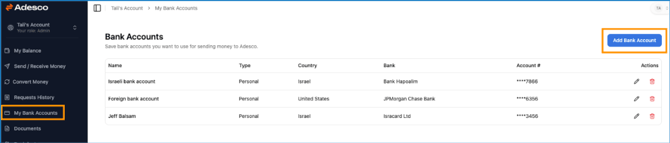
Go to app.adesco.co.il and log in to your account.
On the left side of your screen, click **My Bank Accounts**.
#### Step 2 — Click Add Bank Account
In the top right corner, click the blue button that says **Add Bank Account.**
**Already have an account listed?** If you need to add a document to an existing account, click the **Pencil icon** next to it instead.
---
#### Step 3 — Fill In Your Account Details
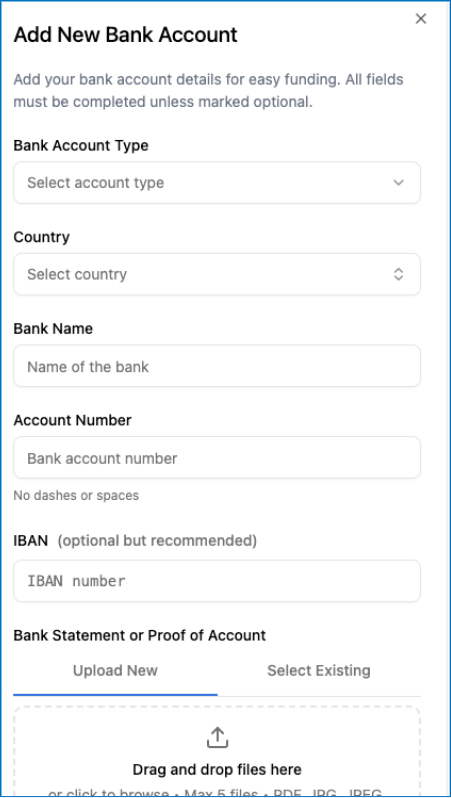
A window will open. Fill in each field:
- **Bank Account Type** — choose from the dropdown (see Step 4)
- **Country** — where your bank is located
- **Bank Name** — the name of your bank
- **Account Number** — enter the number with no dashes or spaces
- **IBAN** — optional, but recommended if you have it
> 
> **What is an IBAN?** It is the long account number starting with the letters IL (for Israeli accounts) or your country code. You can find it on your bank statement or Account Confirmation Letter.
---
#### Step 4 — Choose Your Account Type
Find the **Bank Account Type** dropdown and select the option that matches your situation:
- **My Personal Account** — use this for most transfers to or from your own account
- **A Different Person's Account** — if the account belongs to someone else (not a spouse)
- **Trust Account** — if you are sending to or from a trust
- **LLC / Business / Company** — if the account belongs to a company
> ``
---
#### Step 5 — Upload Your Document
Scroll to the section called **Bank Statement or Proof of Account**.
Click the button to browse your computer and select your file.
> 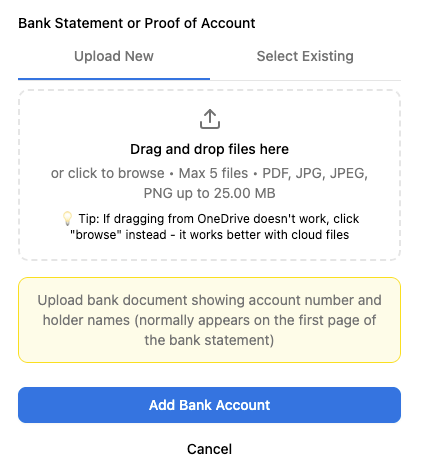
> **What file formats work?** PDF, JPG, and PNG are all accepted.
---
#### Step 6 — Save and Submit
Once everything is filled in and your document is uploaded, click **Add Bank Account**.
Our team will review and verify your account. You will receive a confirmation by email once it is approved.
---
#### Additional Documents for Non-Personal Accounts
*Only read this section if you selected something other than "My Personal Account" in Step 4.*
| Account Type | What You Need to Provide |
| --- | --- |
| A Different Person's Account | Full name, ID number (Teudat Zehut or Passport), copy of their ID |
| Trust Account | Trust name and official registration or tax ID number |
| LLC | LLC name and company registration number |
| Business or Company | Registered business name and company registration number (ח.פ.) |
| Other Entity | Entity name, registration number, your relationship to the entity |
---
#### Need Help?
We are here for you.
Click **Help & Support** in the left menu to chat with our team, or contact us directly:
- WhatsApp: +972-52-220-7326
- Email: [adesco@adesco.co.il](mailto:adesco@adesco.co.il)
- [Getting started](https://www.help.adesco.co.il/getting-started?hsLang=en)
- [Conversions and Transfers](https://www.help.adesco.co.il/conversions-and-transfers?hsLang=en)
- [Transferring Money and Making Payments](https://www.help.adesco.co.il/transferring-money-and-making-payments?hsLang=en)
- [Add Money to Adesco Account](https://www.help.adesco.co.il/add-money-to-adesco-account?hsLang=en)
- [Settings](https://www.help.adesco.co.il/settings?hsLang=en)
- [Support](https://www.help.adesco.co.il/support?hsLang=en)
- [Accessibility](https://www.help.adesco.co.il/accessibility?hsLang=en)
- [Articles for Customers](https://www.help.adesco.co.il/articles-for-customers?hsLang=en)
- [Property Payment Plan](https://www.help.adesco.co.il/property-payment-plan?hsLang=en)
[](https://app.adesco.co.il)
[mailto:email@email.com](mailto:email@email.com)
Copyright © 2026,