
-
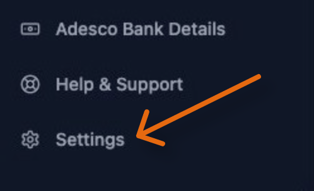
Click on Settings in the left navigation bar.
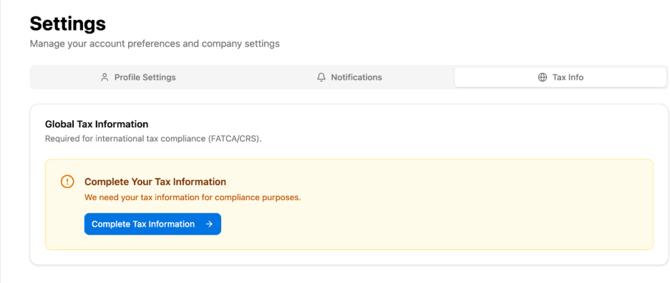
- Then click the Tax Info tab. Start the flow by clicking the blue Complete Tax Information button.
Section 1:
If you are considered a tax person in Israel: Select Yes. You will then be asked if you are considered a tax person in another country as well. If so, select the country and enter your 9-digit Taxpayer Identification Number (TIN).
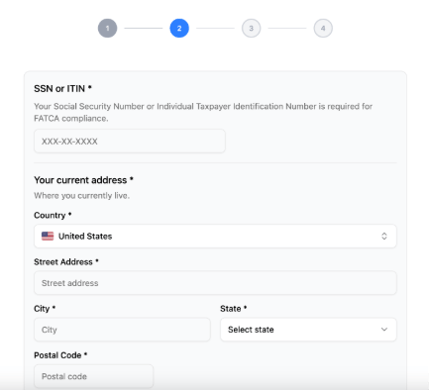
If you are a USA tax person, you will be asked to add your SSN and make sure your address is correct. This is the address where you live today (does not have to be a USA address, rather the address you live in at the time of filling out the information).
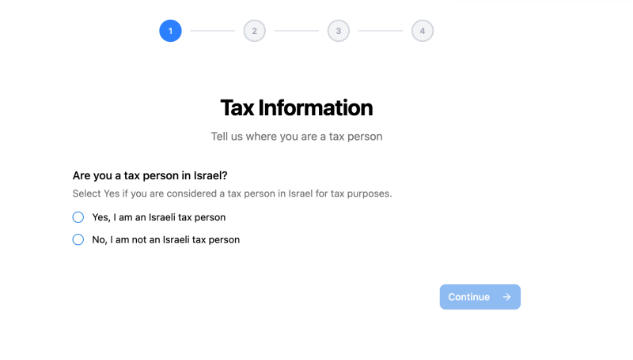
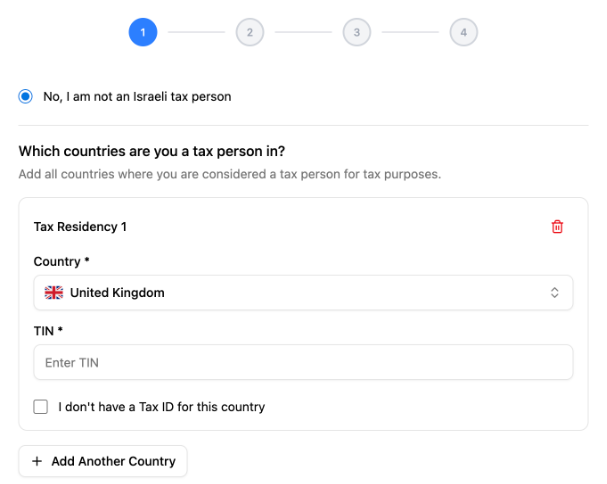
If you are NOT considered a tax person is Israel: Select No. Choose your country of tax residency from the dropdown menu and enter your 9-digit TIN.
Section 2:
If you are NOT a US taxpayer: Select No and click Continue.
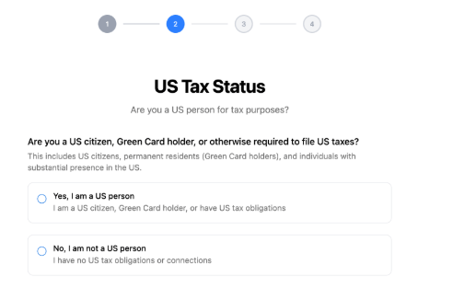
If you are a US citizen, green card holder or otherwise required to file taxes in the USA, you are defined as a US person. If that is the case, please select Yes.
You then need to provide your Social Security Number (SSN). In addition, make sure the address that appears is the correct address and click Continue.
Section 3
Review the Declaration page. To finish, sign your name and check the box to confirm your agreement.
Section 4
Double-check that all information filled out is correct.
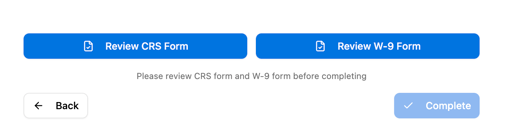
You are also required to review the document that was generated based on your answer. Please review it and make sure all is correct. If everything looks good, click “Complete” to submit. You cannot submit until you have reviewed the document(s).

Note: If you are a US person, two documents will be generated, a FATCA/CRS one and a W9. Please make sure to review both.
That’s it; you’re all set!