---
title: How to add my account information
description: Before you can start making payments, you need to complete your account setup on Adesco.
---
[Skip to content](https://www.help.adesco.co.il/how-to-setup-adesco-account-step-by-step#main-content)
[](https://www.help.adesco.co.il/?hsLang=en)
Open main navigation
Close main navigation
- [Contact us](https://tgvyy.share.hsforms.com/28NEcofvcQnmjNX3r7APrGQ)
[Contact us](https://tgvyy.share.hsforms.com/28NEcofvcQnmjNX3r7APrGQ)
How can we help you?
- There are no suggestions because the search field is empty.
1. [Help center](https://www.help.adesco.co.il/?hsLang=en)
2. [Getting started](https://www.help.adesco.co.il/getting-started?hsLang=en)
# How to add my account information
## Account Setup: Documents, Bank Accounts, and Recipients
Before you can start making payments, you need to complete your account setup on Adesco.
### **Step 1: Sign in to Your Adesco Account**
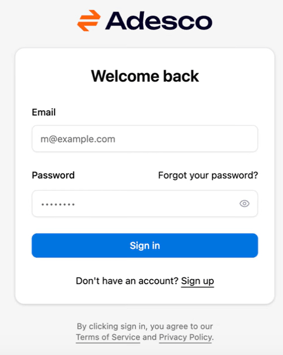
1. Go to the [Adesco log in page](https://app.adesco.co.il/login).
2. Enter your **email** and **password**.
- If you forgot your password, click **Forgot your password?** and follow the instructions to reset it.
3. Click **Sign In** to access your account.
### **Step 2: Open “My Balance”**
1. From the right-hand menu, click **My Balance**.
2. **My Balance is your main hub** for completing account setup.
3. Here you can easily see everything you need to do, as well as links to each page.
4. including uploading documents, adding bank accounts, and setting up recipients.
5. Follow the on-screen instructions to complete each required step.
.png?width=412&height=184&name=image%20(2).png)
### **Step 3: Upload Identification Documents**
1. In **My Balance**, go to the **Documents** section or use the menu to navigate there.
2. Click **Upload Document** and select the file from your computer or mobile device.
3. Enter a clear document name (e.g., *Teudat Zehut – front and back*).
4. For **Teudat Zehut**, upload both sides in high quality so all details are readable.
5. Repeat the process for any additional documents requested in the app.
.png?width=547&height=190&name=image%20(3).png)
### **Step 4: Add Bank Accounts**
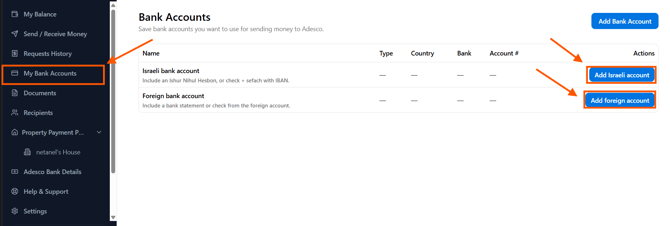
1. In **My Balance**, click **Add Bank Account**, or go to **Bank Accounts** from the menu.
2. Choose whether you are adding an **Israeli bank account** or a **foreign bank account**.
1. Enter all required details exactly as they appear on your bank statement:
- Account name
- Bank name
- Branch
- Account number
- IBAN/SWIFT (if applicable)
2. Upload a **bank statement** or proof of account.
3. Click **Save** and repeat for any additional accounts.
.png?width=454&height=473&name=image%20(5).png)
.png?width=455&height=300&name=image%20(6).png)
### **Step 5: Add Recipients**
1. In **My Balance**, click **Recipients**, or go to **Recipients** from the menu and select **Add Recipient**.
.png?width=511&height=176&name=image%20(7).png)
2. If you want to send money to yourself, use the details from your bank account.
3. To add someone else:
- Click **Add Recipient**.
- Enter a recognizable name.
- Select recipient type (**Individual** or **Business**) and country.
- Fill in all required fields, including:
- Bank details
- Identification (e.g., incorporation number for businesses or national ID for individuals)
4. Click **Save** and repeat for any additional recipients.
.png?width=417&height=497&name=image%20(8).png)
### **Step 6: Final Verification**
That’s it! You’ve finished your account setup.
An Adesco team member will contact you for a quick **two-minute video call** to finalize your details.
Once approved, you can start using the app.
---
#### What’s next?
make your first conversion:
[How to Convert & Send Money - Bank Transfer Payment](https://www.help.adesco.co.il/how-to-convert-send-money-bank-transfer-payment?hsLang=en)
[How to Convert & Send Money - Construction Voucher (Shovar) Payment](https://www.help.adesco.co.il/how-to-convert-send-money-construction-voucher-shovar-payment?hsLang=en)
[How to Convert & Send Money - Tax Voucher Payment](https://www.help.adesco.co.il/how-to-convert-send-money-tax-voucher-payment?hsLang=en)
[How to Convert & Send Money - Bank Check Payment](https://www.help.adesco.co.il/how-to-convert-send-money-bank-check-payment?hsLang=en)
Don’t want to send yet, but want to convert or add money to your Adesco account?
[How to convert and Hold money](https://www.help.adesco.co.il/how-to-convert-and-hold-money?hsLang=en)
[How to Add Money to your Adesco account](https://www.help.adesco.co.il/how-to-add-money-to-your-adesco-account?hsLang=en)
- [Getting started](https://www.help.adesco.co.il/getting-started?hsLang=en)
- [Conversions and Transfers](https://www.help.adesco.co.il/conversions-and-transfers?hsLang=en)
- [Transferring Money and Making Payments](https://www.help.adesco.co.il/transferring-money-and-making-payments?hsLang=en)
- [Add Money to Adesco Account](https://www.help.adesco.co.il/add-money-to-adesco-account?hsLang=en)
- [Settings](https://www.help.adesco.co.il/settings?hsLang=en)
- [Support](https://www.help.adesco.co.il/support?hsLang=en)
- [Accessibility](https://www.help.adesco.co.il/accessibility?hsLang=en)
- [Articles for Customers](https://www.help.adesco.co.il/articles-for-customers?hsLang=en)
- [Property Payment Plan](https://www.help.adesco.co.il/property-payment-plan?hsLang=en)
[](https://app.adesco.co.il)
[mailto:email@email.com](mailto:email@email.com)
Copyright © 2026,