---
title: How to use the Adesco app on your Mobile Device
description: Learn how to add the Adesco platform shortcut to your mobile home screen for instant, app-like access to your account on iOS and Android.
---
[Skip to content](https://www.help.adesco.co.il/how-to-use-the-adesco-app-on-your-mobile-device#main-content)
[](https://www.help.adesco.co.il/?hsLang=en)
Open main navigation
Close main navigation
- [Contact us](https://tgvyy.share.hsforms.com/28NEcofvcQnmjNX3r7APrGQ)
[Contact us](https://tgvyy.share.hsforms.com/28NEcofvcQnmjNX3r7APrGQ)
How can we help you?
- There are no suggestions because the search field is empty.
1. [Help center](https://www.help.adesco.co.il/?hsLang=en)
2. [Accessibility](https://www.help.adesco.co.il/accessibility?hsLang=en)
# How to use the Adesco app on your Mobile Device
## Learn how to add the Adesco platform shortcut to your mobile home screen for instant, app-like access to your account on iOS and Android.
**Adding Adesco to your mobile phone:**
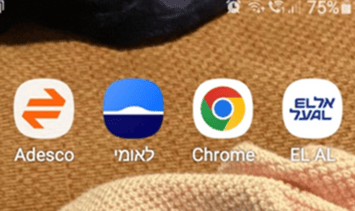
**For Android:**
1. Open Chrome and go to the desired site (e.g., app.adesco.co.il).
2. Tap the three-dot menu at the top right.
3. Select "Add to Home screen" (it may also appear as "Install app" or "Add shortcut" for
some sites).
4. Confirm or edit the name and tap Add.
5. The shortcut will appear on your home screen like the "Adesco" icon shown in your
screenshot.
**For iPhone:**
1. Open Safari (must be Safari, not Chrome) and go to the website you want (e.g., app.adesco.co.il).
2. Tap the Share button (a square with an arrow pointing up, usually at the bottom of the screen).
3. Scroll down the share sheet and tap "Add to Home Screen."
4. Edit the name if you wish, then tap Add.
5. The website icon will appear on your home screen - just like an app shortcut.
*Note: Chrome for iOS does not support adding home screen shortcuts due to Apple’s restrictions. Always use Safari for this feature on iPhone.*
- [Getting started](https://www.help.adesco.co.il/getting-started?hsLang=en)
- [Conversions and Transfers](https://www.help.adesco.co.il/conversions-and-transfers?hsLang=en)
- [Transferring Money and Making Payments](https://www.help.adesco.co.il/transferring-money-and-making-payments?hsLang=en)
- [Add Money to Adesco Account](https://www.help.adesco.co.il/add-money-to-adesco-account?hsLang=en)
- [Settings](https://www.help.adesco.co.il/settings?hsLang=en)
- [Support](https://www.help.adesco.co.il/support?hsLang=en)
- [Accessibility](https://www.help.adesco.co.il/accessibility?hsLang=en)
- [Articles for Customers](https://www.help.adesco.co.il/articles-for-customers?hsLang=en)
- [Property Payment Plan](https://www.help.adesco.co.il/property-payment-plan?hsLang=en)
[](https://app.adesco.co.il)
[mailto:email@email.com](mailto:email@email.com)
Copyright © 2026,